![Flieber Logo Yellow Large.png]](https://help.flieber.com/hs-fs/hubfs/Flieber%20Logo%20Yellow%20Large.png?height=40&name=Flieber%20Logo%20Yellow%20Large.png)
In Flieber, a View is a saved snapshot of how a page is set up: which columns are visible, which filters are applied, how the table is sorted, and how it's grouped. Instead of adjusting the same page over and over every time you log in, you configure it once, save it as a View, and switch straight back to it whenever you need it.
Start by setting the page up the way you actually want to read it. On any of the main data pages ('Sales Forecast', 'Inventory Forecast', 'Inventory Balance', 'Replenishment Simulator' or 'Product Catalog'), choose which columns you want to see, narrow the product list with 'More Filters', aggregate the data with 'Group By', and sort the table by clicking the header of the column you care about. Everything you adjust here is exactly what the View will remember.
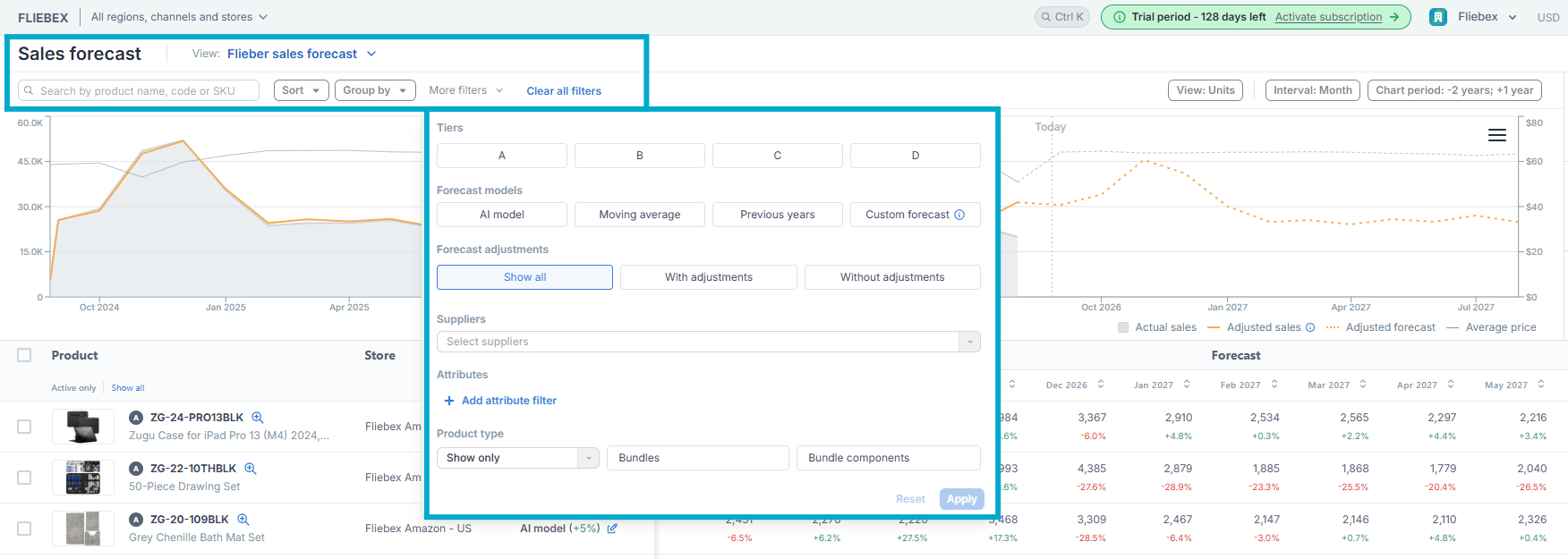
Caption: Configure the page first. The View is saved from whatever is on screen.
Once the page looks right, open the views control at the top of the table and click 'Save View'. Give it a name that describes the routine it supports rather than the data it contains, for example "Monday restock review" or "FBA Europe stock risk", and save. Flieber stores the View on that page, and it will be waiting for you the next time you come back.
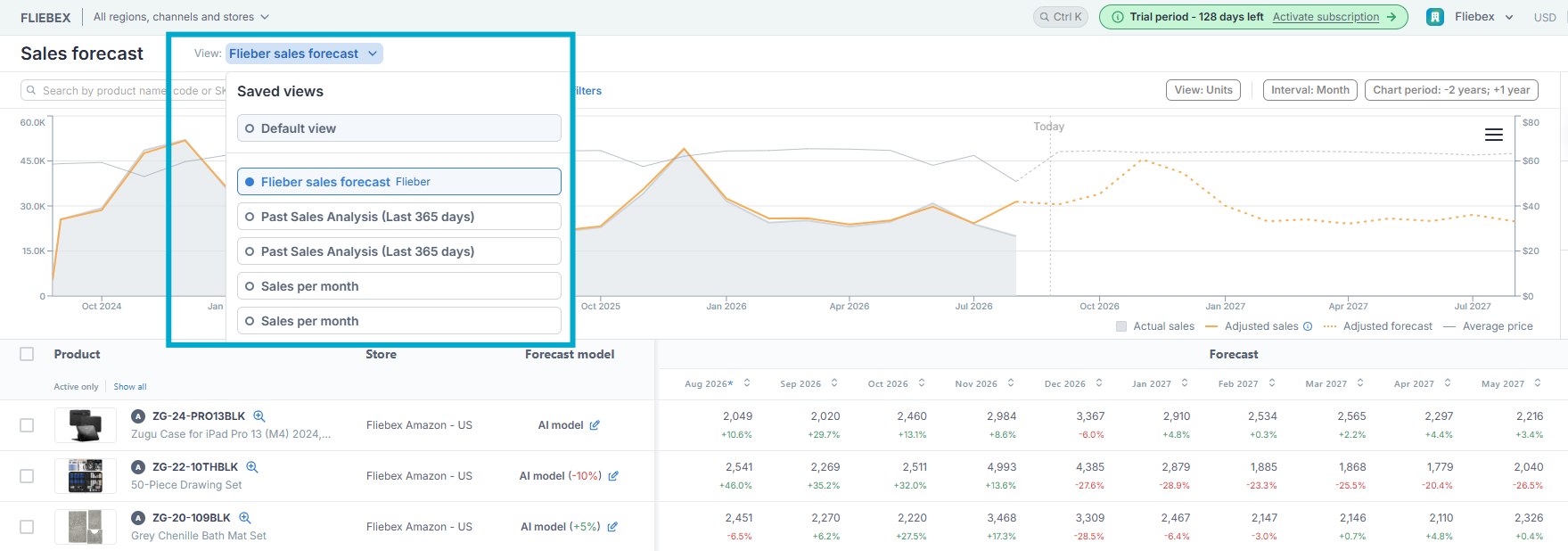
Caption: Naming a View after the decision it supports makes it much easier to find later.
Each View keeps four things together:
- Columns - which columns are visible, and the order they appear in.
- Filters - everything applied through 'More Filters', including store, location, status and your custom attributes.
- Sorting - the column the table is ordered by, and the direction.
- Grouping - the attribute selected under 'Group By'.
To move between Views, open the same dropdown and pick the one you want. Flieber reloads the page with that configuration applied. If you change something in a saved View and want to keep the change, save the View again to update it. If you'd rather keep both versions, save it under a new name and you'll end up with two Views side by side.
Note: Views are saved per page. Building a View on the 'Inventory Forecast' page doesn't create the same View on 'Sales Forecast', so set one up on each page where the configuration is worth keeping.
PRO Tip: Build your Views around the recurring decisions your team makes, not around the data itself. A View filtered to your A-tier products in a single location, sorted by 'Days of Stock', answers "what do I need to reorder this week?" in one click, every week.
Once your Views are in place, working in Flieber gets noticeably faster. Instead of rebuilding the same filters at the start of every session, you jump straight to the version of the page that answers the question you're asking, and you can export that exact cut with the 'Export' button at the bottom left whenever you need it in a spreadsheet.
If you have any questions or concerns, feel free to reach out to us by clicking on the chat in the lower right corner of Flieber.