![Flieber Logo Yellow Large.png]](https://help.flieber.com/hs-fs/hubfs/Flieber%20Logo%20Yellow%20Large.png?height=40&name=Flieber%20Logo%20Yellow%20Large.png)
New products need a little attention: a forecast with little or no sales history, replenishment parameters, and sometimes a status to activate. To help you catch them early, Flieber marks every newly added product with a small blue NEW tag next to its Product Code and lets you filter the list down to new products only.
Where you'll see the NEW tag?
The NEW tag appears next to the Product Code on the Product Catalog, Sales Forecast, Inventory Forecast and Inventory Balance pages (both the 'By product' and 'By SKU' views). Hover over it to see 'Added to Flieber in the last 7 days'.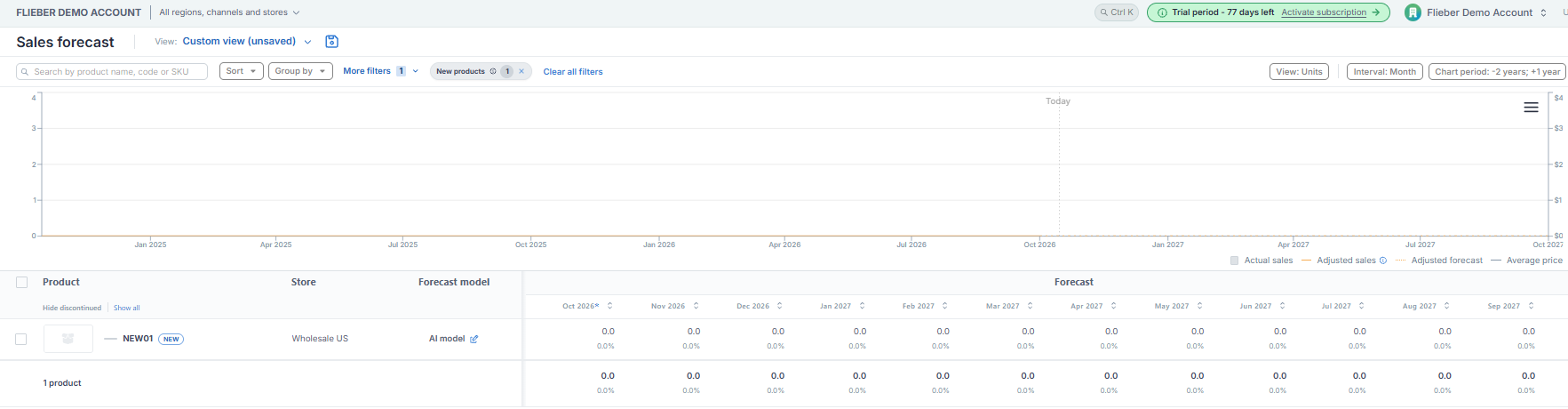
A product stays new for 7 days after it's added to Flieber. After that, the tag disappears on its own, with nothing for you to clean up.
When a product counts as new
Flieber tags a product as new when it first appears in your account. That happens when one of your connected stores starts reporting a new listing, or when you create a product by hand, through a CSV upload or through the API. The 7 days count from the moment Flieber first sees the product, not from the date it was created on your sales channel.
When you connect a new store, Flieber spends the first week bringing in that store's existing catalog. Those products aren't tagged, since they're products you already sell, not new ones. Anything that appears in the store after that first week gets the NEW tag as usual.
How the tag works per store and per location?
Because the same product can sell in several stores, Flieber shows the tag at the level of each page.
- Per store (Product Catalog and Sales Forecast): these pages show one row per product per store, and each row is tagged on its own. If a product you already sell starts selling in a new store, only that new store's row shows NEW. Its other stores don't.
- Per location (Inventory Forecast and Inventory Balance): a product shows NEW for a location only when all the stores that feed that location are new. If the product already sells through another store that uses the same location, it isn't tagged there, because that location already has history for it. In Inventory Balance, the 'By product' view combines all your locations, so a product is tagged only when all of its stores are new. The 'By SKU' view shows the same tag on each of the product's SKUs.
How to see only your new products?
On any of these pages, open 'More filters' and set 'New products' to 'Yes'. Flieber will show only the products that are currently new. Set it to 'No' to see everything else.
Products marked Discontinued are included when you filter by new products. New listings often arrive from your sales channel as drafts, which Flieber shows as Discontinued, and including them means you won't miss a product that's waiting to be activated.

On the Sales Forecast page you also have a 'New products' quick filter next to the filters, showing how many new products you have. Click it to show only those products, and click the ✕ to clear it. When there are none, it shows 0 and explains that no products were added to Flieber in the last 7 days.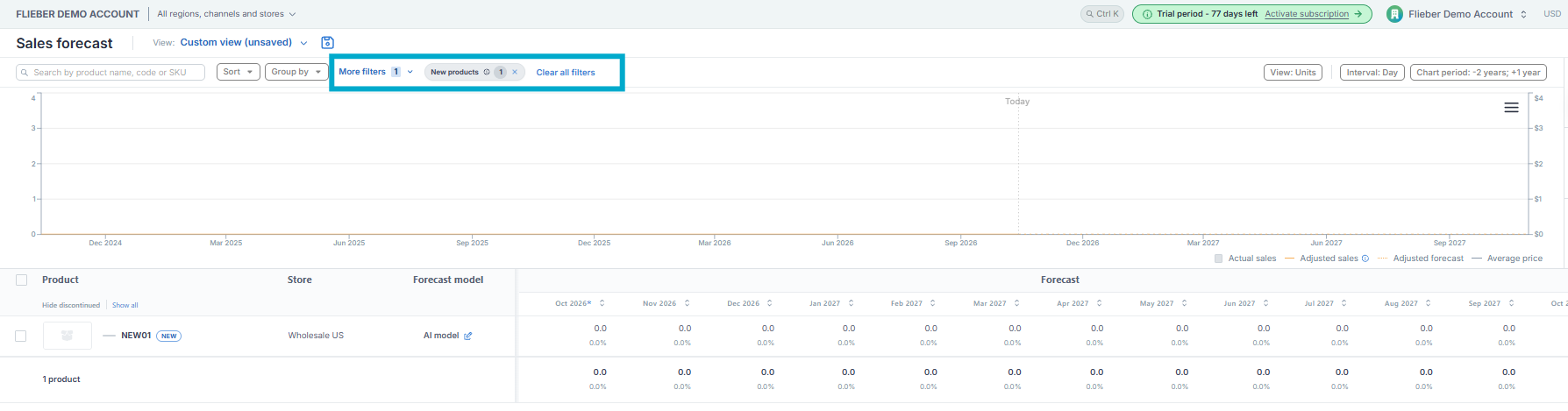
PRO Tip: Make checking new products part of your weekly routine. Filter by new products, then review each one's forecast, set its replenishment parameters, map any SKUs that still need a Product Code, and activate any product that arrived as a draft. Getting this right in the first week means new products are planned correctly from the start.
____________________________________________________________________________________________________
If you have any questions or concerns, feel free to reach out to us by clicking on the chat in the lower right corner of Flieber.