![Flieber Logo Yellow Large.png]](https://help.flieber.com/hs-fs/hubfs/Flieber%20Logo%20Yellow%20Large.png?height=40&name=Flieber%20Logo%20Yellow%20Large.png)
Your planner, your finance lead, your ops manager and your CEO all look at the same numbers from different angles, and Flieber is built for that: every plan includes unlimited users, with no per-seat cost. Adding someone takes few seconds.
There are two roles in Flieber. An 'Admin' can manage billing and invite or manage other members. A 'Member' can use everything else in the platform. Only Admins can add new users, so if you do not see the option described below, ask an Admin on your team to invite you.
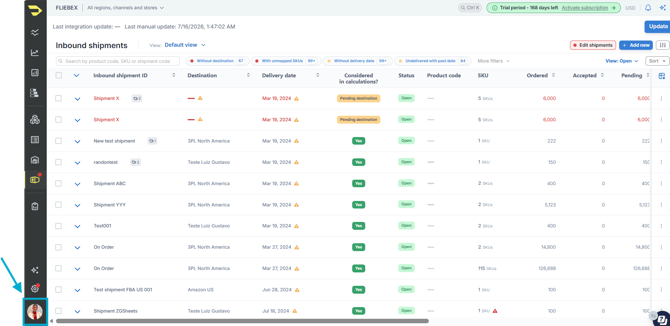
To invite someone, click on your profile photo in the lower left corner of Flieber, then go to 'Organization settings' and open the 'Members' tab. You will see everyone currently in your organization, along with when they joined and which role they hold.
Click 'Invite' and Flieber opens the 'Invite new members' panel. Enter the email address of the person you want to add, or paste several at once separated by spaces or commas if you are onboarding a whole team. Set the 'Role' dropdown to 'Member' or 'Admin', then click 'Send invitations'.
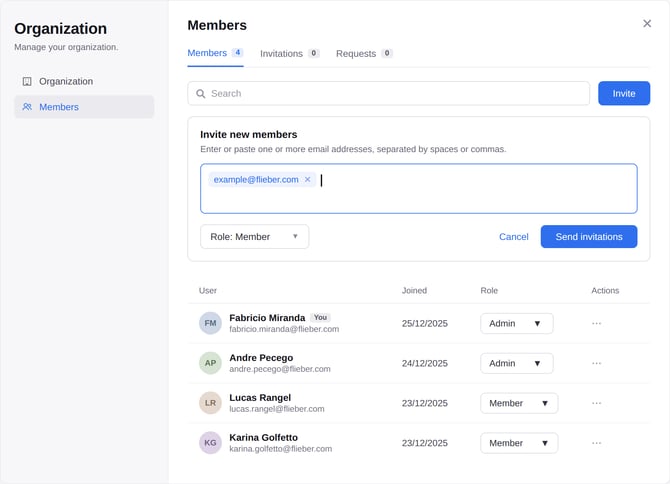
Flieber emails each person an invitation, and they join your organization as soon as they accept it. Until then you can track them under the 'Invitations' tab, so you always know who has accepted and who still needs a push.
PRO Tip: Paste your whole team's email addresses into the field in one go and send a single batch of invitations. Everyone comes in with the role you selected, and you can adjust individuals afterwards.
Changing a role or removing someone
In the members list, the 'Role' dropdown next to each person lets you switch them between 'Admin' and 'Member' at any time, which is what you want when a planner takes over billing or when a new ops lead needs to start inviting their own team.
To take someone out of your organization, click the '...' menu in the 'Actions' column next to their name and remove them. This is the step to remember when someone leaves your company, since their Flieber access does not end on its own.
If you are not registered yet
If your company already uses Flieber, you can request access yourself using your organization's email domain. That creates a request that appears under the 'Requests' tab, where an Admin at your company can approve it. Once approved, you are in.
NOTE: Because roles and access are managed by your own Admins rather than by Flieber, the fastest path is always to ask an Admin on your team directly.
Once someone joins, they see the same forecasts, inventory positions and replenishment recommendations you do, so your team is working from one shared picture instead of different spreadsheets.
If you have any questions or concerns, feel free to reach out to us by clicking on the chat in the lower right corner of Flieber.