![Flieber Logo Yellow Large.png]](https://help.flieber.com/hs-fs/hubfs/Flieber%20Logo%20Yellow%20Large.png?height=40&name=Flieber%20Logo%20Yellow%20Large.png)
If you sell through a channel that doesn't have a native integration, Google Sheets is the fastest way to start feeding sales, inventory, and shipment data into Flieber. In the past, this used to require our team to build a template and share it with you first. Now you can create the store and its spreadsheet on your own, directly from Flieber, and start filling it in right away.
To create one, go to 'System Settings' (the gear icon in the lower left corner), open 'Configure Stores', and click 'Configure Store'. In the 'Integration' dropdown, select 'Others' (with google sheets icon), fill in your store's name and basic details, then click 'Save and close'. Flieber creates a matching spreadsheet for you and connects it to the new store right away, so there's no back and forth waiting on a template from our side.
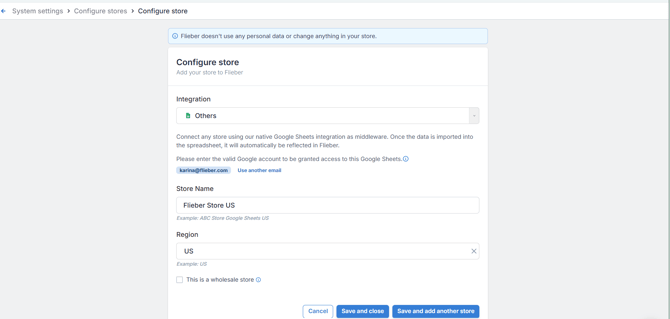
'Configure Store' modal with 'Others' selected in the 'Integration' dropdown, showing the store detail fields
Once your sheet is created, you can start populating it with your sales data. Flieber reads whatever is in the spreadsheet on each sync and brings it into the platform automatically. One thing is worth knowing about how this connection behaves:
- Updates can take a few extra seconds. Reading the data this way is slightly slower to reflect in Flieber than the older script-based method, particularly for Inventory Locations. If your workflow needs the fastest possible updates, ask your Flieber contact about the script-based option.
Note: Keep one row per SKU per date in your sales sheet. If you split the same SKU and date across two separate rows, Flieber won't add them together, it reads exactly what's in each row, so a duplicated SKU and date can throw off your numbers.
PRO Tip: Your sheet is an input source, not the source of truth. Once a row has been uploaded, you can safely delete it from the spreadsheet without removing the data from Flieber, so a rolling recent window is enough. To fix a wrong number, re-enter the same date and SKU with the correct value. To remove a sales record entirely, re-enter it with 0 units, since simply deleting the row won't erase it from Flieber.
After the data starts flowing, tell Flieber how to read your SKUs. Go to 'System Settings' --> 'Configure Stores' --> 'Map SKU' and assign a Product Code to each SKU you want to import. If you use the same Product Code across SKUs or stores, Flieber merges them into a single product, combines their sales history, sums their inventory positions, and generates one forecast and one set of replenishment recommendations for them.
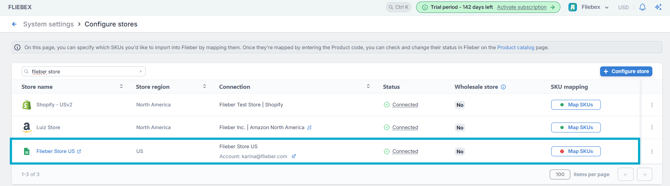
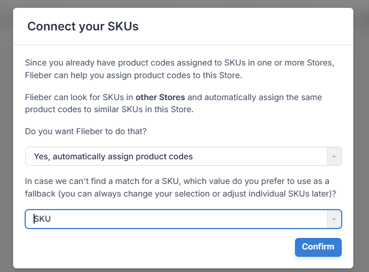

'Map SKU' screen for the new Google Sheets store, with the Product Code column filled in
Note: The self-serve Google Sheets connection is available on the Pro and Max plans. If you don't see 'Google Sheets' in the 'Integration' dropdown, reach out to us and our team will set the connection up with you.
Your sales data will keep flowing in on each sync, and your new store behaves like any other connected channel across the Sales Forecast and Sales Analytics.
If you have any questions or concerns, feel free to reach out to us by clicking on the chat in the lower right corner of Flieber.