![Flieber Logo Yellow Large.png]](https://help.flieber.com/hs-fs/hubfs/Flieber%20Logo%20Yellow%20Large.png?height=40&name=Flieber%20Logo%20Yellow%20Large.png)
Prerequisites
You must have Administrator access to complete these steps.
Ensure the following features are enabled under Setup > Company > Enable Features, in the SuiteCloud tab:
- Web Services
- Token-Based Authentication
Step 1: Retrieve the Account ID (Required)
The Account ID is required to complete the SOAP integration setup.
Option 1: From Web Services Preferences (preferred)
- Go to Setup > Integration > Web Services Preferences
- At the top of the page, you'll see your Account ID. Example:
1234567_SB1(Sandbox) or1234567(Production) - Copy and securely share this ID with your integration partner
Option 2: From the URL (less reliable)
Sometimes the Account ID appears in the browser address bar:
https://<ACCOUNT_ID>.app.netsuite.com/...However, the Web Services Preferences method is preferred.
Step 2: Create an Integration Record
Navigate to:
Setup > Integrations > Manage Integrations > New 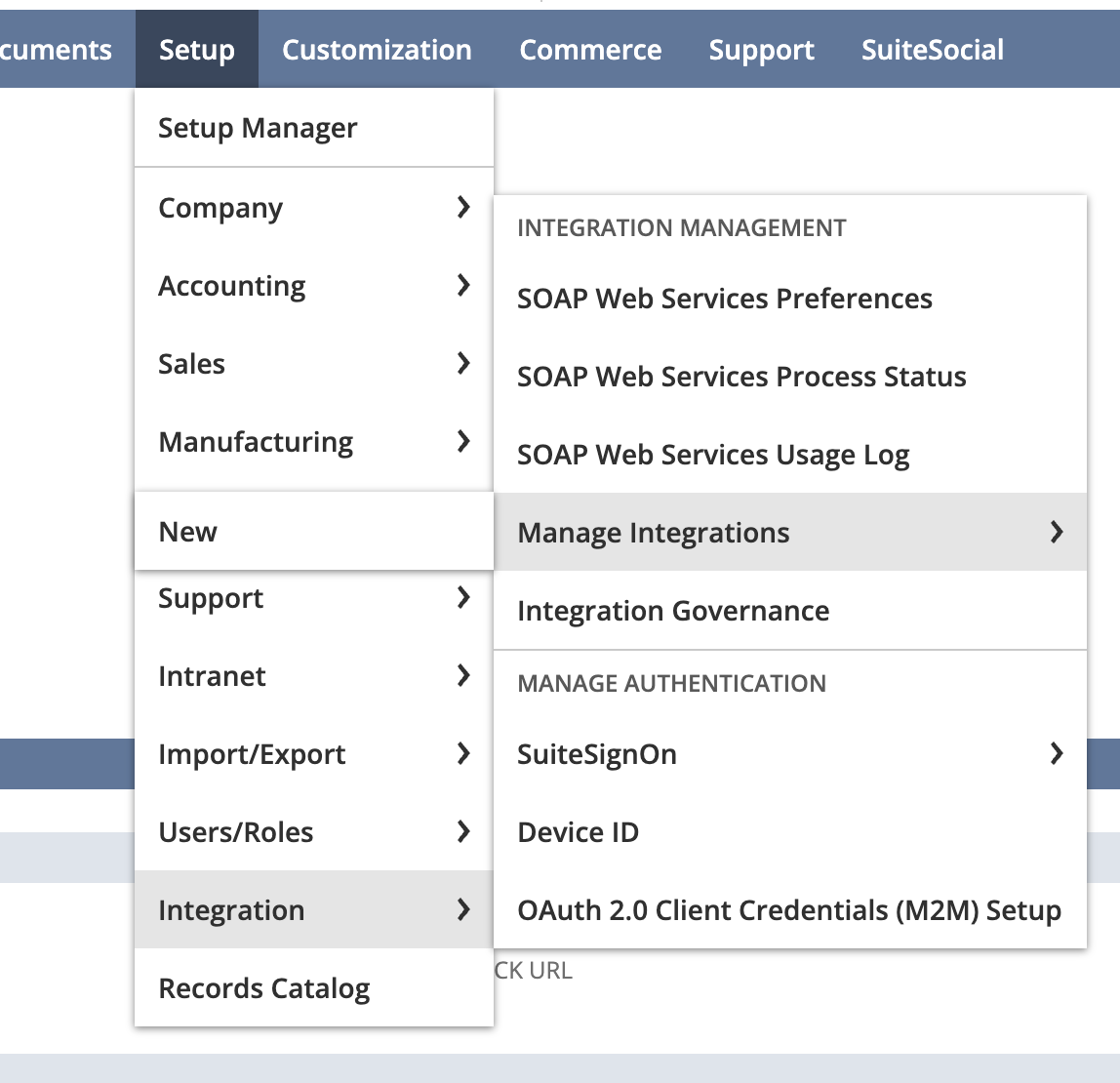
- Name: e.g.
My Company SOAP API Integration - State: Enabled
- Authentication: Token-Based Authentication (checked)
- Callback URL: Leave blank (not required for SOAP)
- Click Save
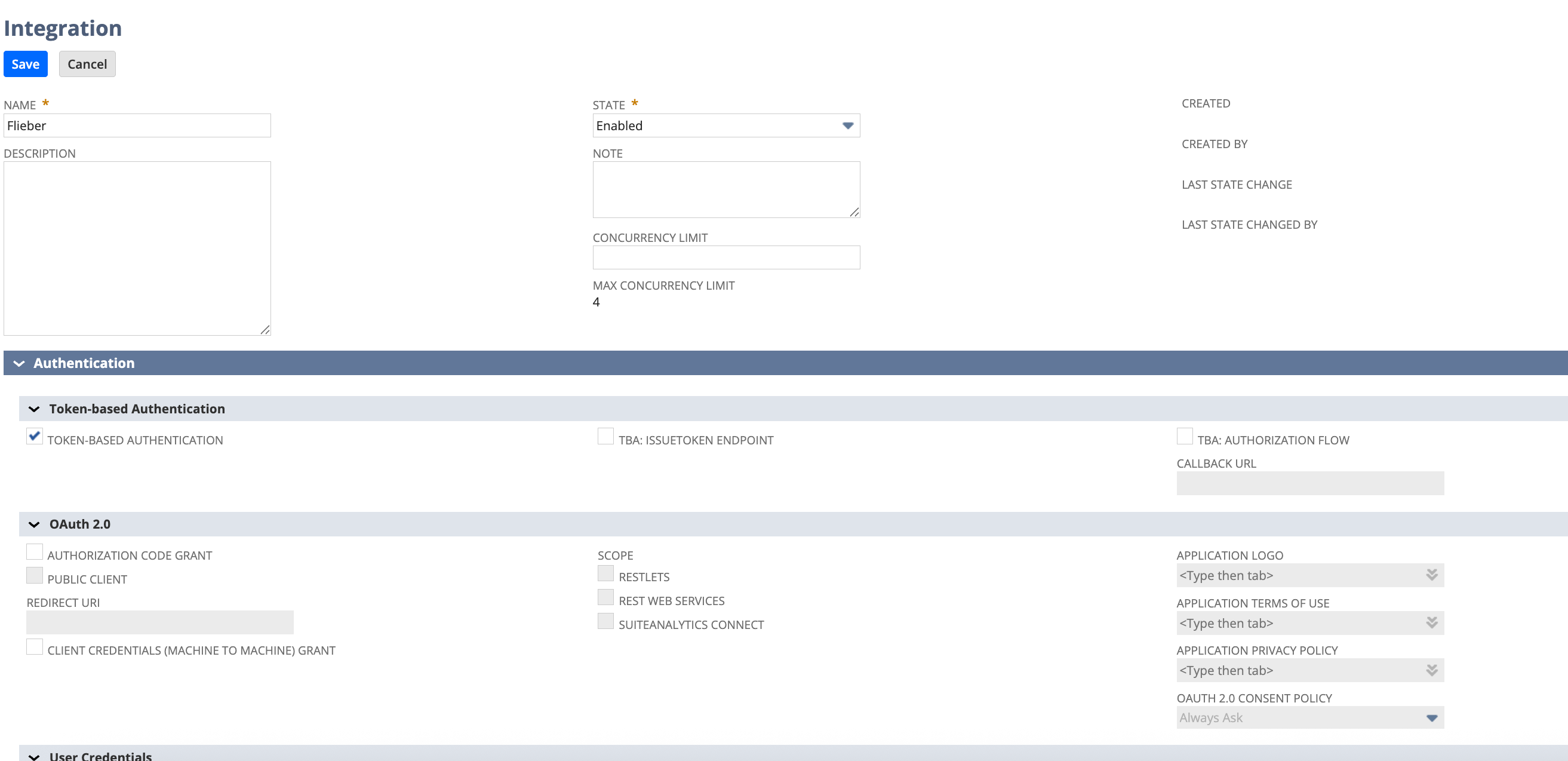 After saving, note down the Consumer Key and Consumer Secret (displayed only once).
Step 3: Create a Custom Role for API Access
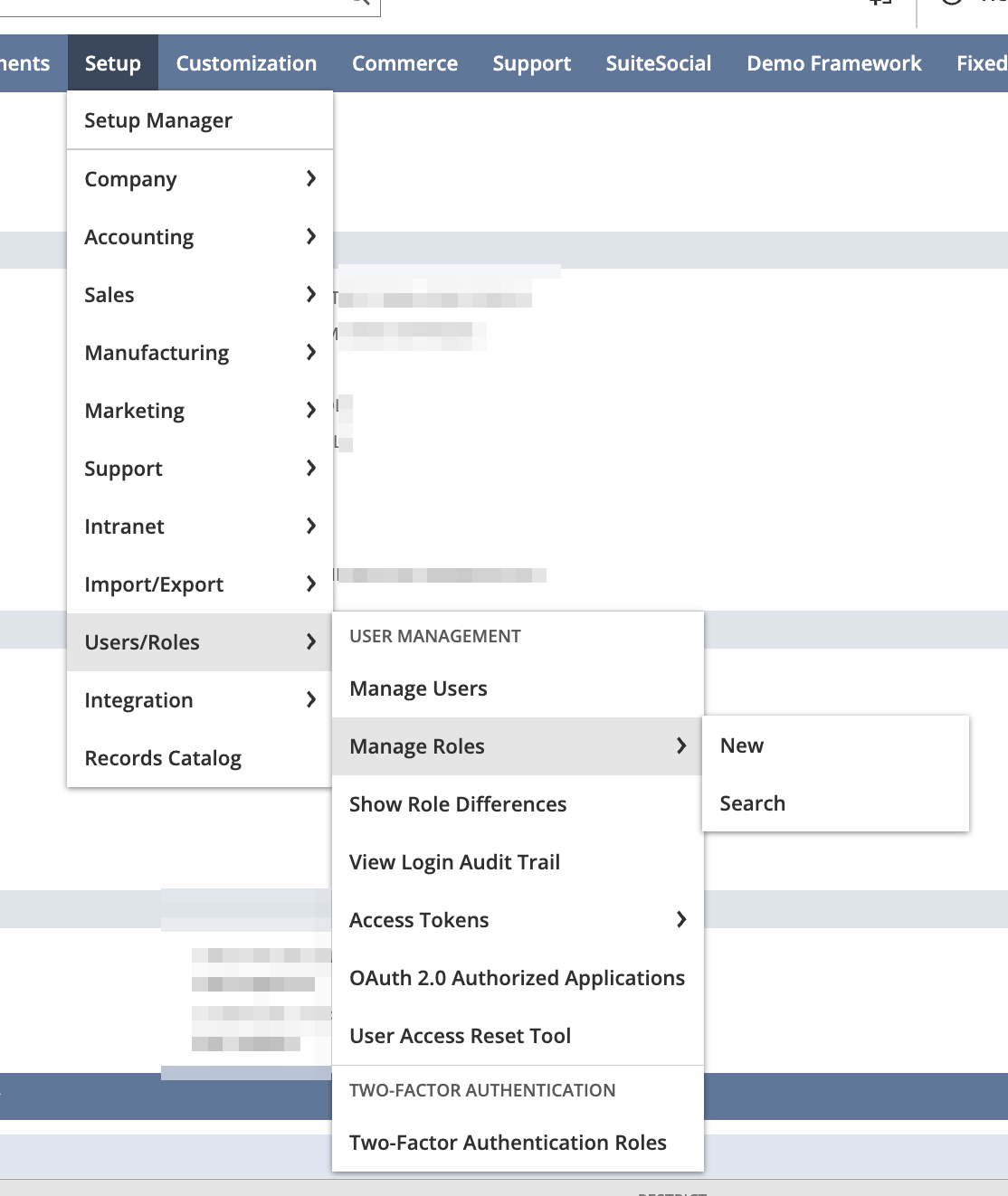
Navigate to:
Setup > Users/Roles > Manage Roles > New- Name: e.g.
Flieber API Integration Role
Required Permissions
Transactions
| Permission | Level |
|---|---|
| Item Shipment | Full |
| Purchase Order | Full |
| Sales Order | Full |
| Transfer Order | Full |

Reports
| Permission | Level |
|---|---|
| SuiteAnalytics Workbook | Edit |

Lists
| Permission | Level |
|---|---|
| Address List in Search | Full |
| Currency | Full |
| Inbound Shipment | Full |
| Items | Full |
| Locations | Full |

Setup
| Permission | Level |
|---|---|
| Control SuiteScript and Workflow Triggers in Web Services Request | Full |
| Log in using Access Tokens | Full |
| REST Web Services | Full |
| SOAP Web Services | Full |
 Click Save.
Step 4: Create or Designate a User
Navigate to:
Lists > Employees > Employees > New- Fill in mandatory fields: Name, Email, etc.
- Check Give Access
- Assign the role created above (
Flieber API Integration Role) under the Access > Roles tab - Set a password (TBA does not use it, but it is required for user creation)
- Click Save
Step 5: Generate Access Tokens
Navigate to:
Setup > Users/Roles > Access Tokens > New 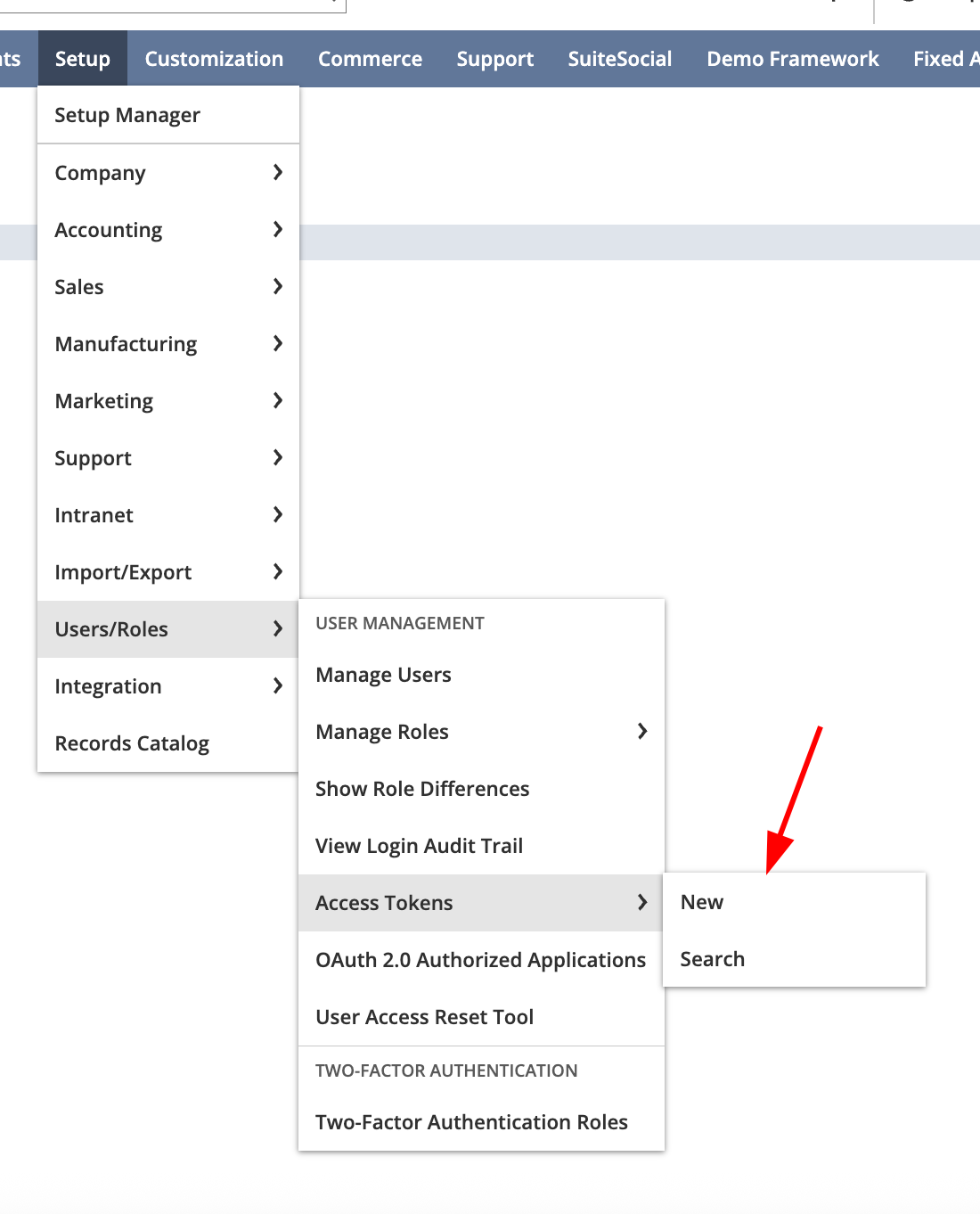
- Application Name: Select the Integration record
- User: Select the integration user
- Role: Select the custom role
- Token Name: e.g.
Flieber API Token - Click Save
After saving, copy and securely store:
- Token ID
- Token Secret
Credentials to Share with Us (Securely)
Go to the Flieber website, log in with your account credentials and navigate to:
Settings > Integrations > NetSuite 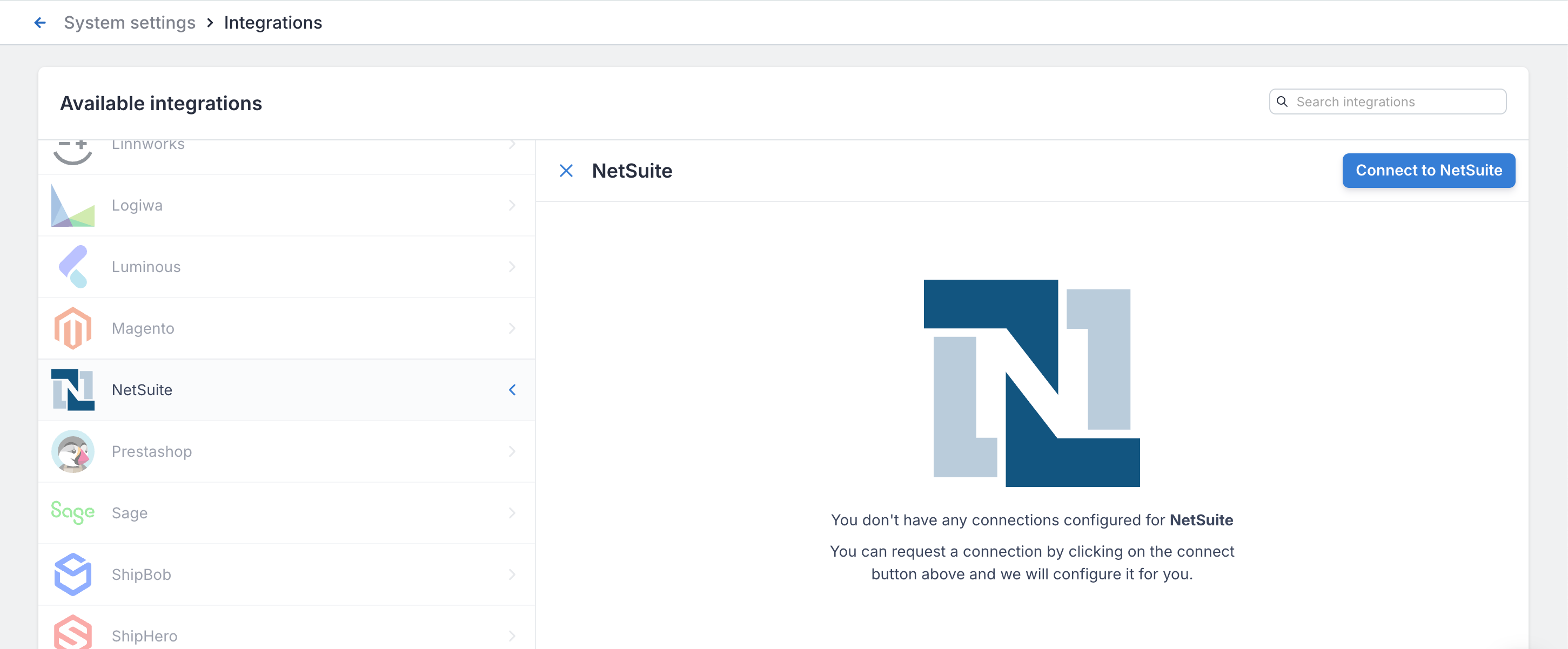 Then, click on Connect to NetSuite and fill out the form with the credentials you obtained:
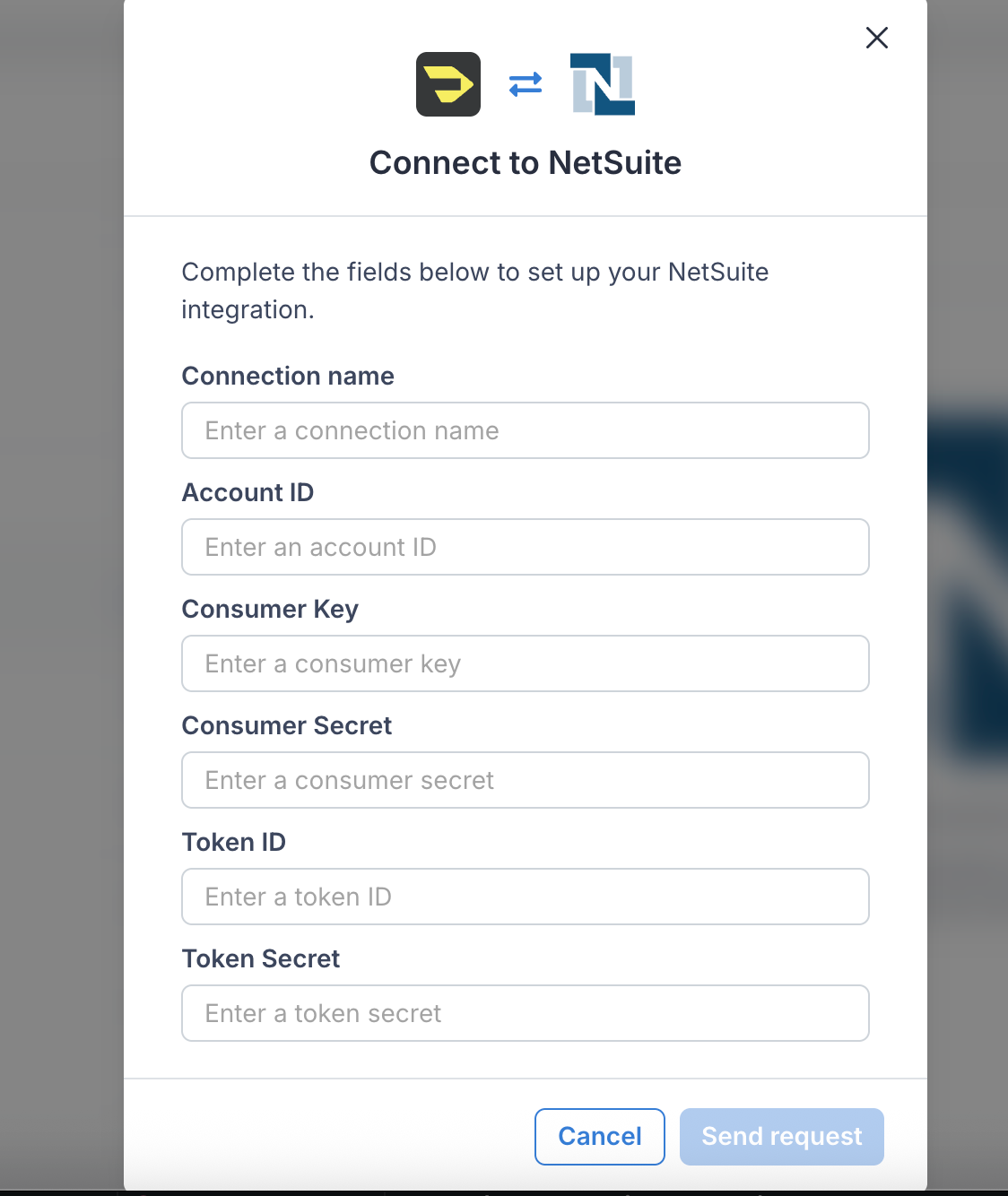
| Credential | Description |
|---|---|
| Connection name | Any name you want to use to identify the connection |
| Account ID | Required to identify your NetSuite environment |
| Consumer Key | From the Integration Record |
| Consumer Secret | From the Integration Record |
| Token ID | From the Access Token |
| Token Secret | From the Access Token |
____________________________________________________________________________________________________
If there are any questions or concerns, click on the chat bubble in the lower right corner within Flieber or send an email to clients@flieber.com.