![Flieber Logo Yellow Large.png]](https://help.flieber.com/hs-fs/hubfs/Flieber%20Logo%20Yellow%20Large.png?height=40&name=Flieber%20Logo%20Yellow%20Large.png)
Flieber shows your inventory in two different places. The Inventory Balance page is the raw data: the units you have on hand in each location, exactly as they come in from your integration (NetSuite, Shopify, Amazon, a spreadsheet, and so on). The Inventory Forecast page is where Flieber does the math, projecting how that inventory will be consumed over time and what you need to replenish.
For Flieber to run that math, it needs to know which sales consume each location's inventory. That is why the Inventory Forecast is only calculated for locations that are mapped to at least one store. Once a store is set to be fulfilled from a location, Flieber will use that store's sales forecast to calculate the inventory consumption, Days of Stock, and replenishment needs for that location.
Why is my location showing as 'Not mapped'?
If you open the Inventory Forecast and see a location marked as 'Not mapped', don't worry, your inventory data is not missing. Hover your mouse over it and you will see that the units are there, coming in through your integration as expected. The only thing missing is the link between that location and the stores that sell from it, so Flieber has no demand to consume that inventory against.
This is common right after you add a new warehouse or 3PL. The integration starts bringing in its stock right away, but your stores are still set to be fulfilled from your previous location.
-png.png?width=1794&height=429&name=image%20(43)-png.png)
How to map a location to your stores
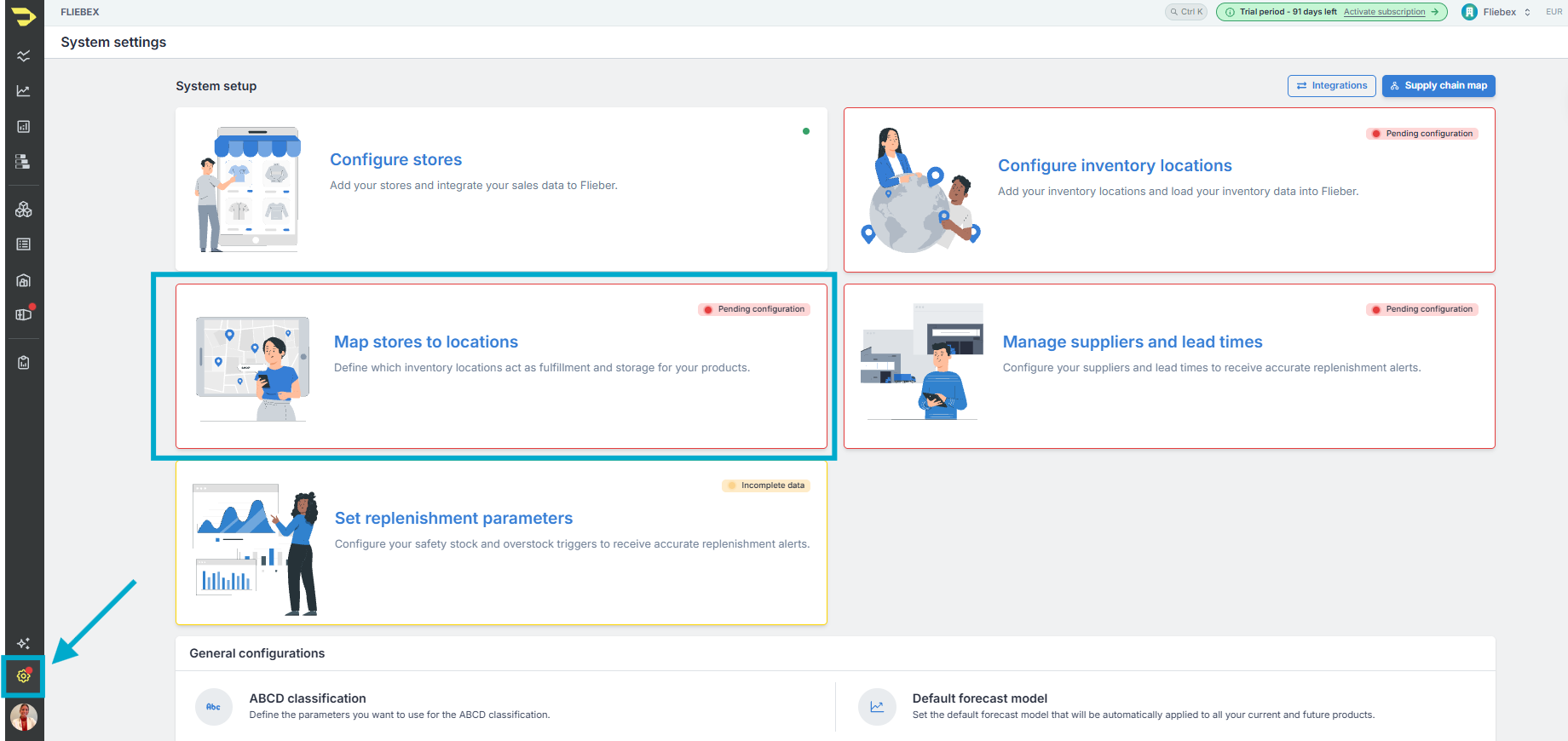
The fastest way to find what's pending is the System Settings area. Click the gear icon and follow the alerts: Flieber flags every setup item that still needs your attention, and anything in red means something critical is missing for the calculations to run.
From there, open the store and location mapping page. You will see the list of all your stores, each with the inventory location it is fulfilled from. Select the correct location for each store that sells from it, and save. Once you do, the location will show as mapped in the Inventory Forecast, and Flieber will start calculating its inventory consumption and replenishment needs.
PRO Tip: If you have many stores to update, for example when you move your fulfillment from one warehouse to another, you don't need to change them one by one. Click the edit default locations button at the top of the page and Flieber will open a spreadsheet view where you can copy and paste the new location for all your stores at once.

Note: Stores that are still flagged in red after you set their location may also need their SKUs mapped. You can add or map SKUs by going to 'System Settings' --> 'Configure Stores' --> 'Add or map SKUs'.
Once your locations are mapped, check the Inventory Forecast again. Each location will now show its projected inventory, and the replenishment recommendations will take its stock into account.
If you have any questions or concerns, feel free to reach out to us by clicking on the chat in the lower right corner of Flieber.