![Flieber Logo Yellow Large.png]](https://help.flieber.com/hs-fs/hubfs/Flieber%20Logo%20Yellow%20Large.png?height=40&name=Flieber%20Logo%20Yellow%20Large.png)
When you are reviewing a purchase plan, you often need to nudge quantities up or down to fill a container, stay inside a cash limit, or protect your best sellers from being cut. Doing that product by product in a spreadsheet takes a long time. With 'Replenish Units with AI' you hand those constraints to Flieber and let it rebalance the entire plan for you, right inside your replenishment plan.
Getting to your replenishment plan
If you are not in a plan yet, start from the 'Inventory Forecast' page, select the product you want to replenish, and click 'Start Purchase Plan'. Flieber then asks for your inputs, the target arrival date and the days of coverage you want the plan to reach, and takes you into the 'Adjust' step, below the order quantities. You can also get there straight from a restocking alert on your dashboard, which opens the same plan.
Note: If you start the plan without a product selected, Flieber asks you to set the plan destination first, the store or location the plan applies to, and then brings you back into the same flow.
Handing your constraints to the AI
After saving the Replenishment Plan, inside 'Adjust' or in the left bottom of the Replenishment Simulation, open the order quantity for any product and select 'Enhance Plan'. A window opens where you set the constraints you want the AI to optimize against:
- Container - choose the container or pallet type you are shipping in, and Flieber will aim to fill it efficiently instead of leaving space behind or paying for a costly partial load.
- Cash flow restrictions - cap the plan against a cash limit, using the numbers already in your simulation.
- Extra Instructions - a free text field for anything else you want the AI to account for, for example "don't reduce units for Product A or Product B, cut Product D first if you need to make room."
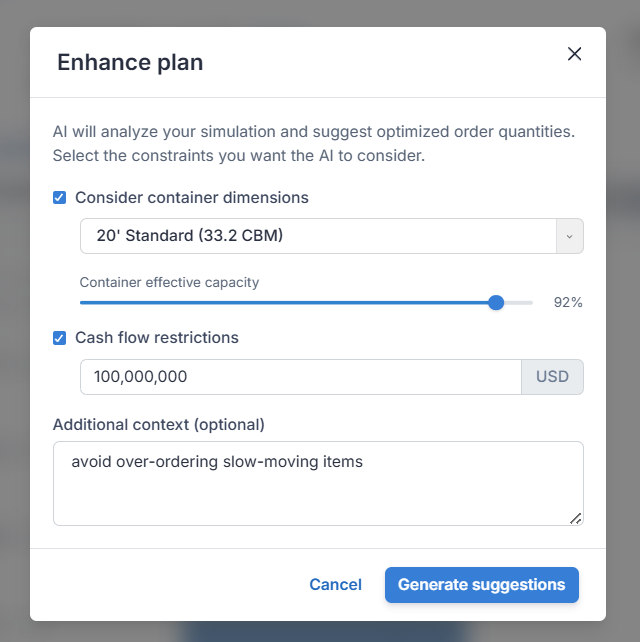
The constraints window inside the 'Enhance plan' step.
Reviewing what changed, then applying it
Once you submit, Flieber reads your product tiers, current days of coverage, stockout risk and carton dimensions, then works out how to reallocate units across every product in the plan. Hard limits like MOQ are always respected, and your top tier products are prioritized first. Before anything is applied, Flieber returns a short summary of what it considered, so you can check that the logic makes sense for your operation.
The order quantity column then drops into edit mode with the suggested values already filled in. The previous value stays visible underneath each new one, so you never lose track of what changed, and a small AI icon next to each edited cell explains why that product's quantity was adjusted when you hover it. When everything looks right, click 'Apply'.
Note: Applying updates every product included in the simulation, not only the one you clicked into, so give the full plan a look before you apply.
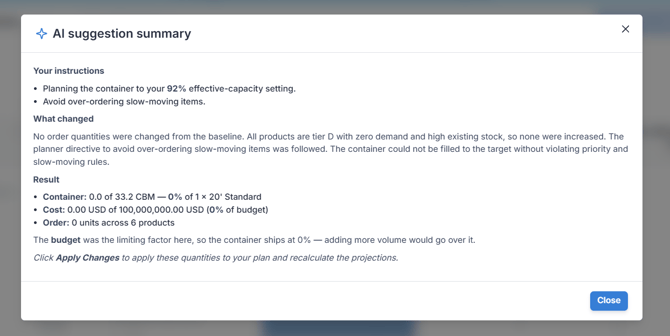 Every adjusted cell keeps its previous value and a short explanation.
After you apply, Flieber shows you the container math: how many containers or pallets your plan fills, roughly how full each one is, and the total volume and weight behind the calculation. You can also set now how much % you want to use filling each container.
If a product in your plan is missing its carton dimensions, Flieber flags it so you can fix it before it is included in the calculation. Click the flag to jump straight to 'Edit Suppliers', then fill in 'Length', 'Width', 'Height', 'Weight' and 'Items per Carton' for that product.
PRO Tip: Fill in carton dimensions for your full catalog in 'Edit Suppliers' ahead of time, so every product is eligible for AI-optimized replenishment the first time you run it, not just the ones you remember to fix along the way.
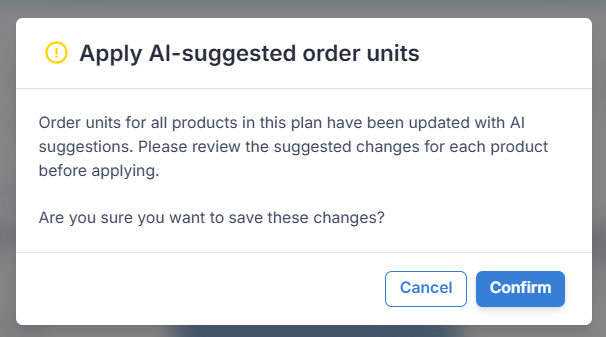
Confirmation to save changes in oder units for all products
Note: This feature runs on Flieber's AI Lab, so it is available wherever AI Lab is enabled on your account. If you don't have AI Lab access yet, reach out to your Flieber contact or clients@flieber.com and we will get it turned on.
Once the plan is balanced the way you want it, you can move on and convert it into an inbound shipment as usual, and your Inventory Forecast will pick up the new quantities from there.
If you have any questions or concerns, feel free to reach out to us by clicking on the chat in the lower right corner of Flieber.