![Flieber Logo Yellow Large.png]](https://help.flieber.com/hs-fs/hubfs/Flieber%20Logo%20Yellow%20Large.png?height=40&name=Flieber%20Logo%20Yellow%20Large.png)
A discontinued product is an item you've decided to stop producing, selling, or replenishing. In supply chain planning, it's essential to set up discontinued products correctly, so they stay out of your replenishment planning and you avoid overstocking items you won't sell anymore, while your forecasting calculations stay accurate.
How to set a product as Discontinued
To flag a product as discontinued, go to 'Product Catalog' --> 'Edit Products', locate the desired SKU, and update its 'Status in Flieber' to Discontinued. Once you save, Flieber will stop showing the product in the default view of the Sales Forecast and Inventory Forecast pages, and it won't appear in your replenishment needs.
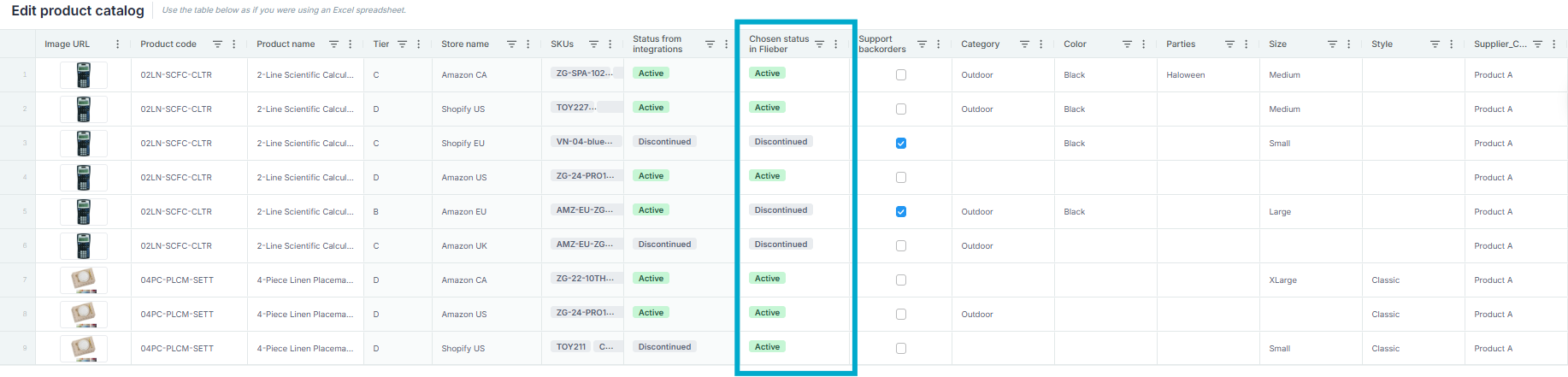
Nothing is deleted. The product keeps its full sales history in Flieber, and Flieber continues to calculate its sales forecast and inventory projection in the background, so you can check them whenever you need.
How to see Discontinued products
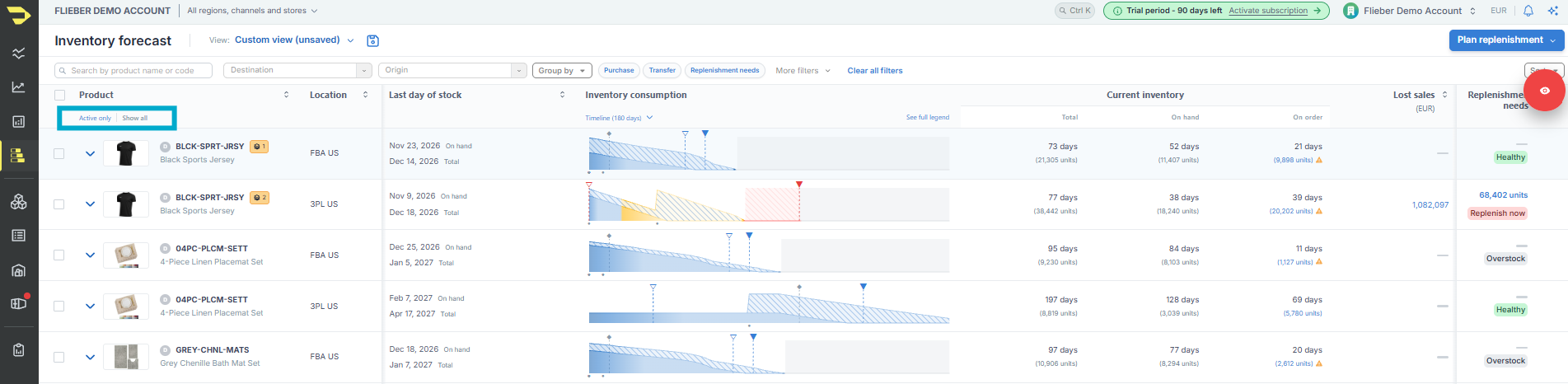
By default, Flieber only displays Active products on pages like the Sales Forecast and Inventory Forecast. If a product seems to have disappeared from one of these pages, it is most likely set as Discontinued. Click 'Show All' below the Product column to bring Discontinued products back into view.
How to reactivate a product
If you set a product as Discontinued by mistake, or you decide to sell it again, simply go back to 'Product Catalog' --> 'Edit Products', locate the SKU, and change its 'Status' to Active. Flieber will include it again in the default views and in your replenishment needs.
Discontinued vs. Archived
Discontinued and Archived are not the same, and they're used in different places:
- Discontinued - a status for products that are already in Flieber. The product keeps its data and history, but it's hidden from the default views and from your replenishment needs. Use it for products you're winding down or no longer sell.
- Archived - an option on the 'Map SKUs' page for SKUs you don't want to import into Flieber. When you connect a store, Flieber shows an alert for every SKU that is still pending mapping. Archiving a SKU removes that alert, and the SKU won't be imported or displayed on any page.
To unarchive a SKU, go to 'System Settings' --> 'Configure Stores' --> 'Map SKUs', click 'Show Archived', and add a Product Code to the SKU you want to bring back.
Note: Neither option changes anything in your sales channels. Flieber operates read-only, so setting a product as Discontinued or archiving a SKU in Flieber has no impact on your listings in Amazon, Shopify, or any other connected channel.
How your sales channels affect product status
When a product is first imported, Flieber reflects its status from the integration. If the product is inactive in Amazon or Shopify at that moment, it will appear as Discontinued in Flieber. You can change it at any time in the Product Catalog, and you can also see the status reported by your channels there.
Flieber keeps each product's status in sync with your sales channels. When a listing is no longer live in a channel (for example, an Amazon listing that becomes Inactive or gets suspended, or a Shopify product moved to draft or archived), Flieber sets it as Discontinued, and it won't be part of your forecast or replenishment suggestions. If you still want Flieber to plan replenishment for that product, you can set its status manually in Flieber. A status you set manually is never overwritten by the sync.
PRO Tip: If a product you still sell is missing from your replenishment needs, check its status first. A product imported while it was inactive in a channel is the most common reason it shows up as Discontinued.
____________________________________________________________________
If you have any questions or concerns, feel free to reach out to us by clicking on the chat in the lower right corner of Flieber.